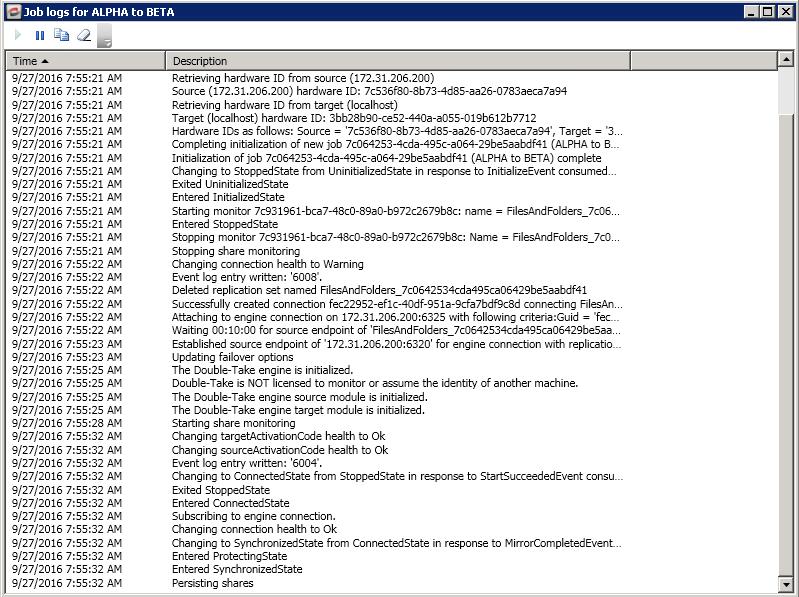
You can view a job log file through the Double-Take Console by selecting View Job Log from the toolbar on the Jobs page. Separate logging windows allow you to continue working in the Double-Take Console while monitoring log messages. You can open multiple logging windows for multiple jobs. When the Double-Take Console is closed, all logging windows will automatically close.
The following table identifies the controls and the table columns in the Job logs window.
Start 
This button starts the addition and scrolling of new messages in the window.
Pause 
This button pauses the addition and scrolling of new messages in the window. This is only for the Job logs window. The messages are still logged to their respective files on the server.
Copy 
This button copies the messages selected in the Job logs window to the Windows clipboard.
Clear 
This button clears the Job logs window. The messages are not cleared from the respective files on the server. If you want to view all of the messages again, close and reopen the Job logs window.
Time
This column in the table indicates the date and time when the message was logged.
Description
This column in the table displays the actual message that was logged.