|
|
Use the following instructions to create a recovery job.
With protection and recovery jobs, your servers can be in a NAT environment. However, you must make sure you have added your servers to the Double-Take Console using the correct IP address.
Click Get Started from the toolbar.
Select Double-Take DR and click Next.
Select Recover files and folders or an entire Windows server and click Next.
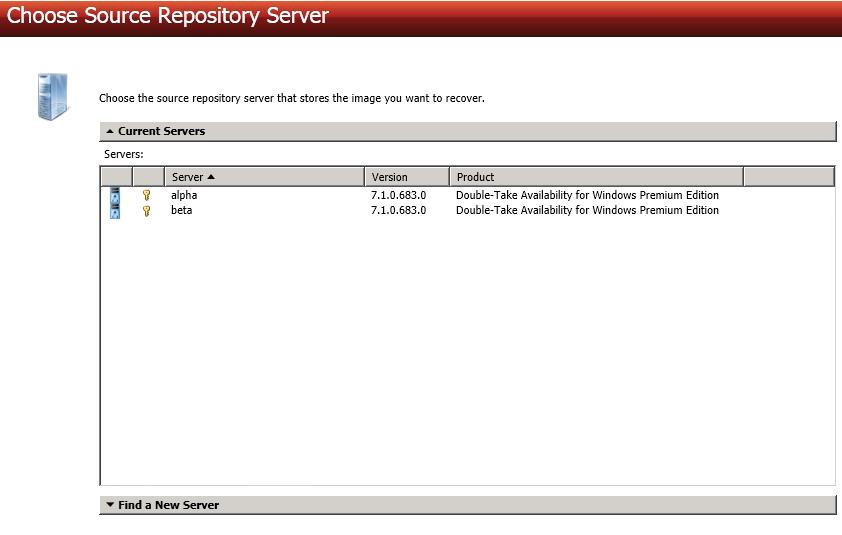
Choose your source repository server. This was your target repository server when you established the protection job. The repository server contains the image of the original source or the image of the protected data from the original source that you want to recover.
If you enter the source server's fully-qualified domain name, the Double-Take Console will resolve the entry to the server short name. If that short name resides in two different domains, this could result in name resolution issues. In this case, enter the IP address of the server.
When specifying credentials for a new server, specify a user that is a member of the local Double-Take Admin and local administrator security groups.
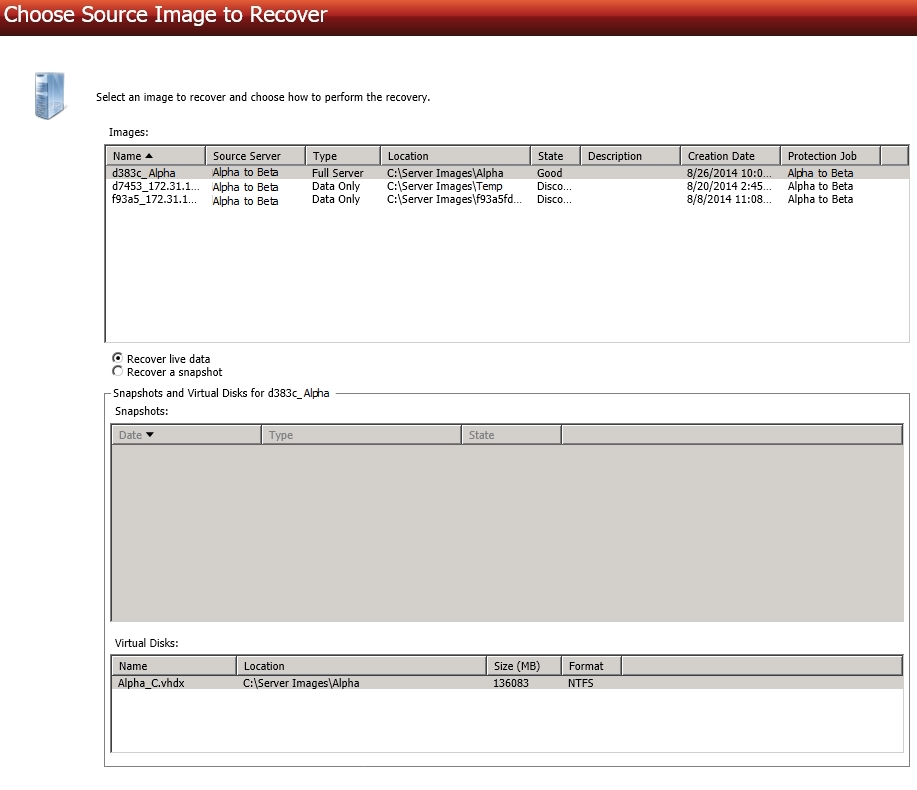
Choose the image that you want to recover. When you select a source in the image list, the snapshots and virtual disks associated with that source will be displayed. Select if you want to recover the live data or the snapshot data. If you select to recover to snapshot data, be sure and select the snapshot.
Choose the data from your source image that you want to recover.
If the workload you are looking for is not displayed, enable Show all workload types. The workload types in gray text are not available for the source server you have selected. Hover your mouse over an unavailable workload type to see a reason why this workload type is unavailable for the selected source.
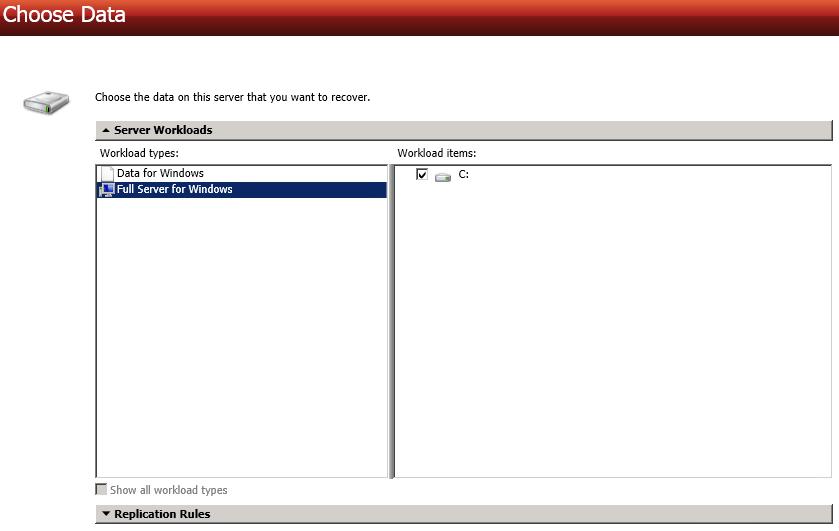
To select your files and folders in more detail, click the Replication Rules heading and expand the volumes under Folders.
If you return to this page using the Back button in the job creation workflow, your Workload Types selection will be rebuilt, potentially overwriting any manual replication rules that you specified. If you do return to this page, confirm your Workload Types and Replication Rules are set to your desired settings before proceeding forward again.
Choose your target recovery server. This is the server where the protected data will be recovered.
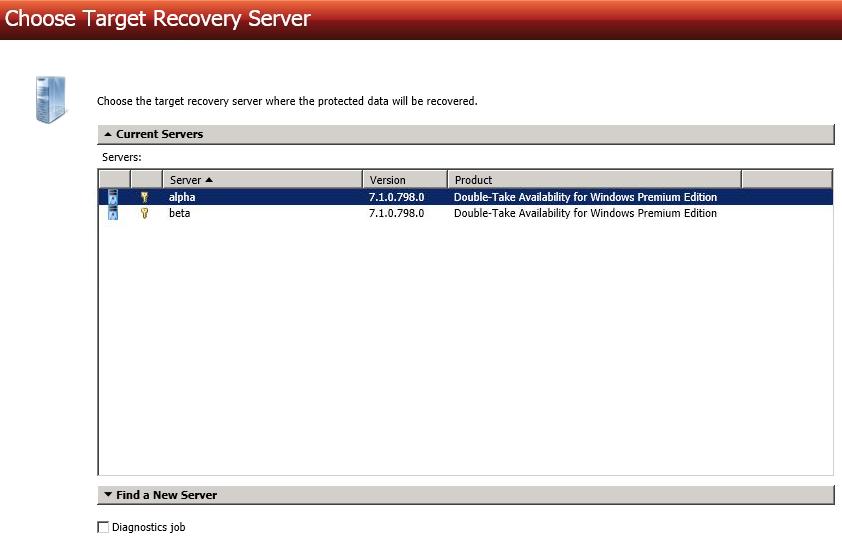
If you enter the target server's fully-qualified domain name, the Double-Take Console will resolve the entry to the server short name. If that short name resides in two different domains, this could result in name resolution issues. In this case, enter the IP address of the server.
When specifying credentials for a new server, specify a user that is a member of the local Double-Take Admin and local administrator security groups.
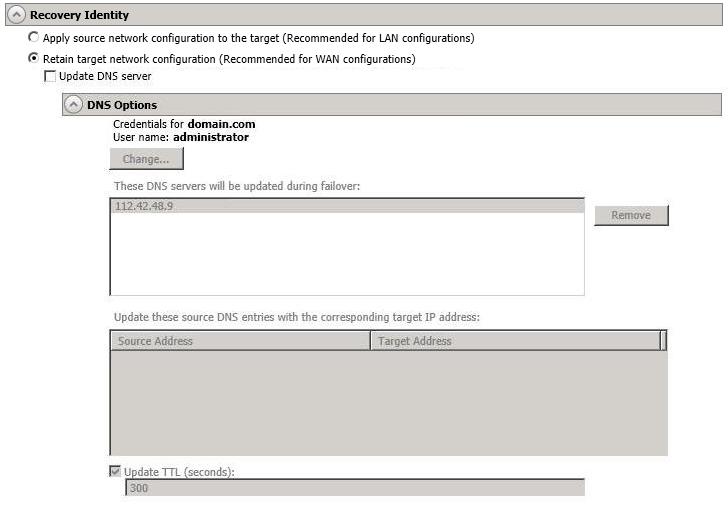
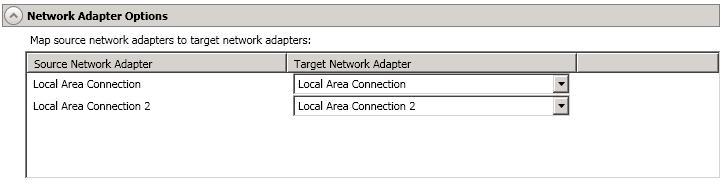
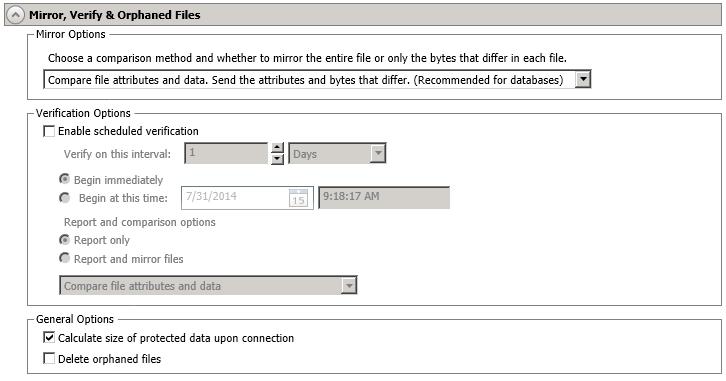
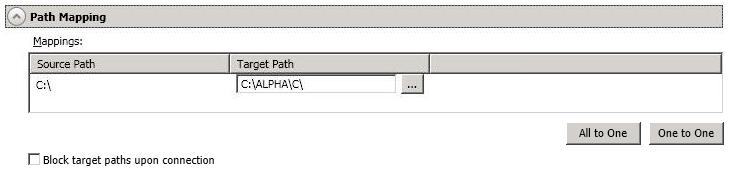
You have many options available for your DR recovery job. Some options are available for both data and full server jobs, while some options are only for one job type or the other. Configure those options that are applicable to your environment and job type.
Click a link below to see the options available for that section of the Set Options page.
Double-Take validates that your source and target are compatible. The Summary page displays your options and validation items.
Errors are designated by a white X inside a red circle. Warnings are designated by a black exclamation point (!) inside a yellow triangle. A successful validation is designated by a white checkmark inside a green circle. You can sort the list by the icon to see errors, warnings, or successful validations together. Click on any of the validation items to see details. You must correct any errors before you can continue.
Once your servers have passed validation and you are ready to establish recovery, click Finish, and you will automatically be taken to the Manage Jobs page.
Jobs in a NAT environment may take longer to start.
 General