Use these instructions to create a full server job.
If you are creating a full server job in order to revert back to your original configuration after failing over a full server to ESX or full server to Hyper-V, you will need to perform a few additional tasks before creating the full server job. Contact technical support if you need assistance with these steps.
- Review these best practices before you create your job.
NIC configuration—If you are planning to failover the IP address of the source, use a separate NIC and separate network for a Double-Take reserved IP address that will not be failed over. If you are unable to do that and just one NIC is used for both production and reserved IP addresses, disable DNS registration on the NIC. If you are not going to failover the IP address of the source, an additional NIC and address is not necessary. In this case, Double-Take will block the DNS record for that address while it is failed over.
- Windows 2003 servers—If your servers are running Windows 2003 and you have a separate, reserved NIC configuration, make sure that the reserved NIC address does not have a default gateway set. If your servers are running Windows 2003 and you have a single NIC configuration, make the Double-Take reserved IP address is the primary IP address in the NIC properties on the source, otherwise, the failed over IP address may need to be removed on the original source after failover to allow the reserved IP address to come online.
- Third machine setup—Ideally, you should use a third machine (not the source or target) for configure protection, to failover, and to reverse. The third machine must be able to communicate with the source and target using their reserved IP addresses.
- Double-Take Console—Insert your source and target servers into the console using the reserved IP addresses and a local computer account that is a member of the Double-Take Admin and Administrators groups.
- NAT environments—Full server jobs in a NAT environment are only supported with reverse protection disabled. Additionally, you must make sure you have added your servers to the Double-Take Console using the correct IP address. Review the NAT configuration table in the Adding servers section before you start the job creation process.
-
Click Get Started from the toolbar.
-
Select Double-Take Availability and click Next.
-
Select Protect files and folders, an application, or an entire Windows server and click Next.
-
Choose your source server. This is the physical or virtual server that you want to protect.
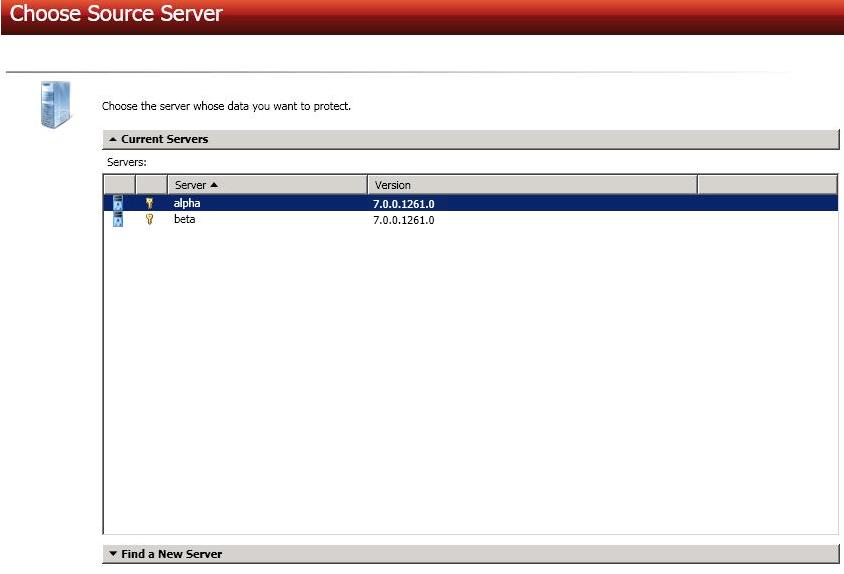
- Current Servers—This list contains the servers currently available in your console session. Servers that are not licensed for the workflow you have selected will be filtered out of the list. Select your source server from the list.
- Find a New Server—If the server you need is not in the Current Servers list, click the Find a New Server heading. From here, you can specify a server along with credentials for logging in to the server. If necessary, you can click Browse to select a server from a network drill-down list.
If you enter the source server's fully-qualified domain name, the Double-Take Console will resolve the entry to the server short name. If that short name resides in two different domains, this could result in name resolution issues. In this case, enter the IP address of the server.
When specifying credentials for a new server, specify a user that is a member of the local Double-Take Admin and local administrator security groups. If the source is a domain controller, Double-Take will add the security groups to the users OU, therefore permissions must be located there. If your source is the only domain controller in your network, the account must also be a local account in the local administrators group on the target. If you want Double-Take to update DNS during failover, the account must be a member of the Domain Admins group. If your security policies do not allow use of this group, see DNS and use the instructions under the Double-Take DFO utility to use a non-Domain Admins account.
-
Click Next to continue.
-
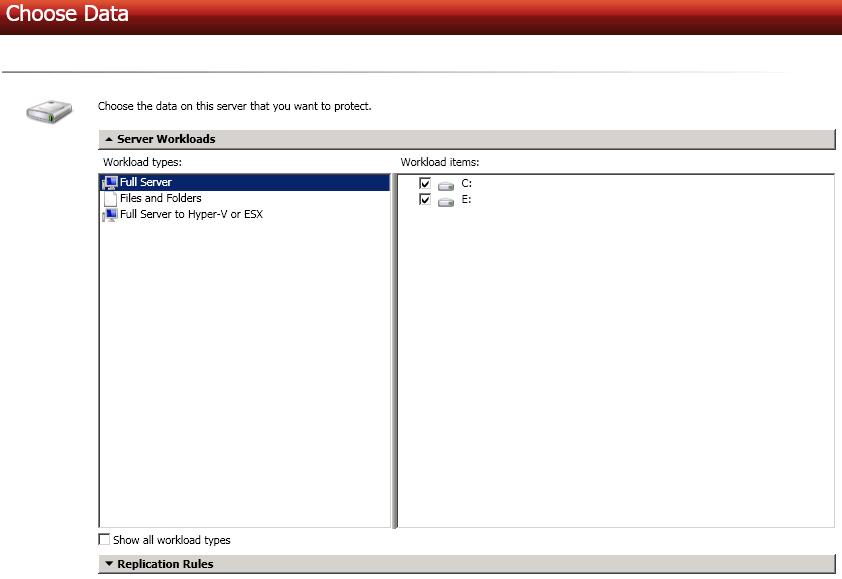
Choose the type of workload that you want to protect. Under Server Workloads, in the Workload types pane, select Full Server. In the Workload items pane, select the volumes on the source that you want to protect.
If the workload you are looking for is not displayed, enable Show all workload types. The workload types in gray text are not available for the source server you have selected. Hover your mouse over an unavailable workload type to see a reason why this workload type is unavailable for the selected source.
-
By default, Double-Take selects your entire source for protection. If desired, click the Replication Rules heading and expand the volumes under Folders. You will see that Double-Take automatically excludes particular files that cannot be used during the protection. If desired, you can exclude other files that you do not want to protect, but be careful when excluding data. Excluded volumes, folders, and/or files may compromise the integrity of your installed applications. There are some volumes, folders, and files (identified in italics text) that you will be unable to exclude, because they are required for protection. For example, the boot files cannot be excluded because that is where the system state information is stored.
Volumes and folders with a green highlight are included completely. Volumes and folders highlighted in light yellow are included partially, with individual files or folders included. If there is no highlight, no part of the volume or folder is included. To modify the items selected, highlight a volume, folder, or file and click Add Rule. Specify if you want to Include or Exclude the item. Also, specify if you want the rule to be recursive, which indicates the rule should automatically be applied to the subdirectories of the specified path. If you do not select Recursive, the rule will not be applied to subdirectories.
You can also enter wildcard rules, however you should do so carefully. Rules are applied to files that are closest in the directory tree to them. If you have rules that include multiple folders, an exclusion rule with a wild card will need to be added for each folder that it needs applied to. For example, if you want to exclude all .log files from D:\ and your rules include D:\, D:\Dir1 , and D:\Dir2, you would need to add the exclusion rule for the root and each subfolder rule. So you will need to add exclude rules for D:\*.log , D:\Dir1\*.log, and D:\Dir2\*.log.
If you need to remove a rule, highlight it in the list at the bottom and click Remove Rule. Be careful when removing rules. Double-Take may create multiple rules when you are adding directories. For example, if you add E:\Data to be included in protection, then E:\ will be excluded. If you remove the E:\ exclusion rule, then the E:\Data rule will be removed also.
If you return to this page using the Back button in the job creation workflow, your Workload Types selection will be rebuilt, potentially overwriting any manual replication rules that you specified. If you do return to this page, confirm your Workload Types and Replication Rules are set to your desired settings before proceeding forward again.
If IIS is being used as a hardware platform manager by your hardware vendor on both the source and target, you need to remove the INetPub directory from replication under the Replication Rules heading. If IIS is being used as a software application on your source but as a hardware platform manager by your hardware vendor on your target, you need to add the INetPub directory to the Staged Folders Options list on the Set Options page later in this workflow.
-
Click Next to continue.
-
Choose your target server. This is the server that will store the replica data from the source.
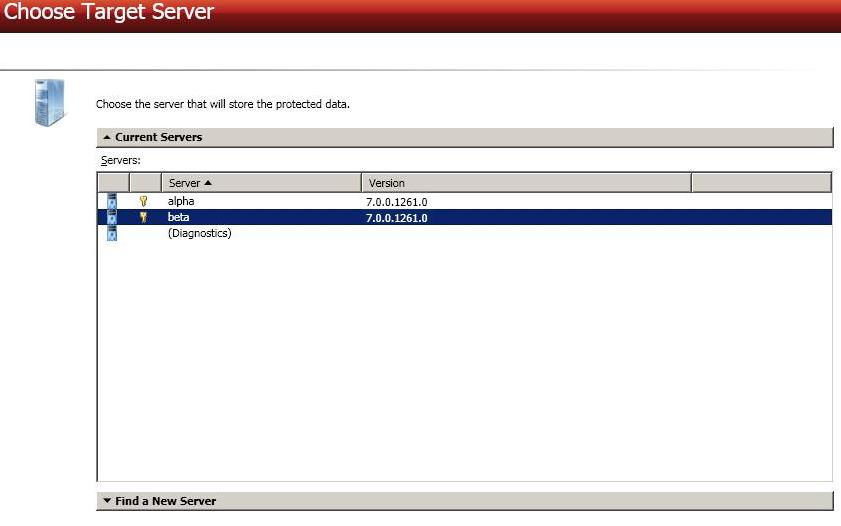
- Current Servers—This list contains the servers currently available in your console session. Servers that are not licensed for the workflow you have selected and those not applicable to the workload type you have selected will be filtered out of the list. Select your target server from the list.
- Find a New Server—If the server you need is not in the Current Servers list, click the Find a New Server heading. From here, you can specify a server along with credentials for logging in to the server. If necessary, you can click Browse to select a server from a network drill-down list.
If you enter the target server's fully-qualified domain name, the
Double-Take Console will resolve the entry to the server short
name. If that short name resides in two different domains, this could
result in name resolution issues. In this case, enter the IP address of
the server.
When specifying credentials for a new server, specify a user that is a member of the local Double-Take Admin and local administrator security groups. If the source is a domain controller, Double-Take will add the security groups to the users OU, therefore permissions must be located there. If your source is the only domain controller in your network, the account must also be a local account in the local administrators group on the target. If you want Double-Take to update DNS during failover, the account must be a member of the Domain Admins group. If your security policies do not allow use of this group, see DNS and use the instructions under the Double-Take DFO utility to use a non-Domain Admins account.
-
Click Next to continue.
-
You have many options available for your full server job. Configure those options that are applicable to your environment.
Click a link below to see the options available for that section of the Set Options page.

For the Job name, specify a unique name for your job.
-
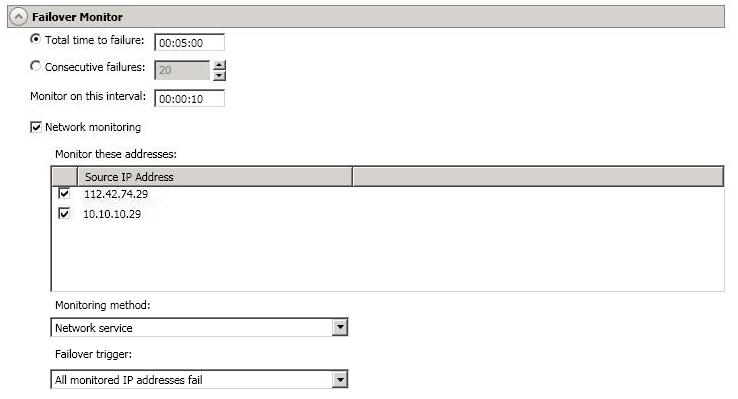
Total time to failure—Specify, in hours:minutes:seconds, how long the target will keep trying to contact the source before the source is considered failed. This time is precise. If the total time has expired without a successful response from the source, this will be considered a failure.
Consider a shorter amount of time for servers, such as a web server or order processing database, which must remain available and responsive at all times. Shorter times should be used where redundant interfaces and high-speed, reliable network links are available to prevent the false detection of failure. If the hardware does not support reliable communications, shorter times can lead to premature failover. Consider a longer amount of time for machines on slower networks or on a server that is not transaction critical. For example, failover would not be necessary in the case of a server restart.
- Consecutive failures—Specify how many attempts the target will make to contact the source before the source is considered failed. For example, if you have this option set to 20, and your source fails to respond to the target 20 times in a row , this will be considered a failure.
-
Monitor on this interval—Specify, in hours:minutes:seconds, how long to wait between attempts to contact the source to confirm it is online. This means that after a response (success or failure) is received from the source, Double-Take will wait the specified interval time before contacting the source again. If you set the interval to 00:00:00, then a new check will be initiated immediately after the response is received.
If you choose Total time to failure, do not specify a longer interval than failure time or your server will be considered failed during the interval period.
If you choose Consecutive failures, your failure time is calculated by the length of time it takes your source to respond plus the interval time between each response, times the number of consecutive failures that can be allowed. That would be (response time + interval) * failure number. Keep in mind that timeouts from a failed check are included in the response time, so your failure time will not be precise.
- Network monitoring—With this option, the target will monitor the source using a network ping.
Monitor these addresses—Select each Source IP Address that you want the target to monitor. If you want to monitor additional addresses, enter the address and click Add. In a NAT environment, you can add any additional public IP addresses on the source that may not be listed. Additionally, you should not monitor any private IP addresses on the source because the target cannot reach the source's private address in a NAT environment, thus causing an immediate failure.
- Monitoring method—This option determines the type of network ping used for failover monitoring.
- Network service—Source availability will be tested by an ICMP ping to confirm the route is active.
- Replication service—Source availability will be tested by a UDP ping to confirm the Double-Take service is active.
- Network and replication services—Source availability will be tested by both an ICMP ping to confirm the route is active and a UDP ping to confirm the Double-Take service is active. Both pings must fail in order to trigger a failover.
- Failover trigger—If you are monitoring multiple IP addresses, specify when you want a failover condition to be triggered.
- One monitored IP address fails—A failover condition will be triggered when any one of the monitored IP
addresses fails. If each IP address is on a different subnet, you may want to trigger failover
after one fails.
- All monitored IP addresses fail—A failover condition will be triggered when all monitored IP addresses fail. If
there are multiple, redundant paths to a server, losing one probably means an isolated
network problem and you should wait for all IP addresses to fail.
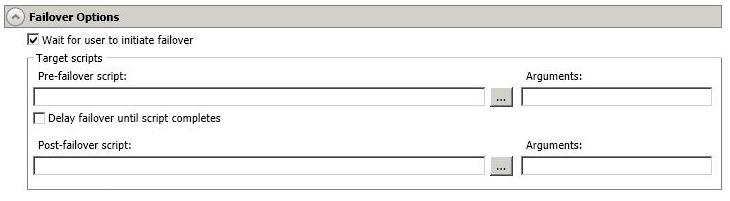
- Wait for user to initiate failover—By default, the failover process will wait for you to initiate it, allowing you to control when failover occurs. When a failure occurs, the job will wait in Failover Condition Met for you to manually initiate the failover process. Disable this option only if you want failover to occur immediately when a failure occurs.
-
Scripts—You can customize failover by running scripts on the target or the recovered source. Scripts may contain any valid Windows command, executable, or batch file. The scripts are processed using the same account running the Double-Take service, unless you have identified a specific account through the server's properties. See Script credentials. Examples of functions specified in scripts include stopping services on the target before failover because they may not be necessary while the target is standing in for the source, stopping services on the target that need to be restarted with the source’s machine name and/or IP address, starting services or loading applications that are in an idle, standby mode waiting for failover to occur, notifying the administrator before and after failover occurs, and so on. There are two types of failover scripts.
- Pre-failover script—This script runs on the target at the beginning of the failover process. Specify the full path and name of the script file.
- Post-failover script—This script runs on the recovered source at the end of the failover process. Specify the full path and name of the script file.
- Arguments—Specify a comma-separated list of valid arguments required to execute the script.
- Delay until script completes—Enable this option if you want to delay the failover process until the associated script has completed. If you select this option, make sure your script handles errors, otherwise the failover process may never complete if the process is waiting on a script that cannot complete.
Scripts will run but will not be displayed on the screen if the Double-Take service is not set to interact with the desktop. Enable this option through the Windows Services applet.
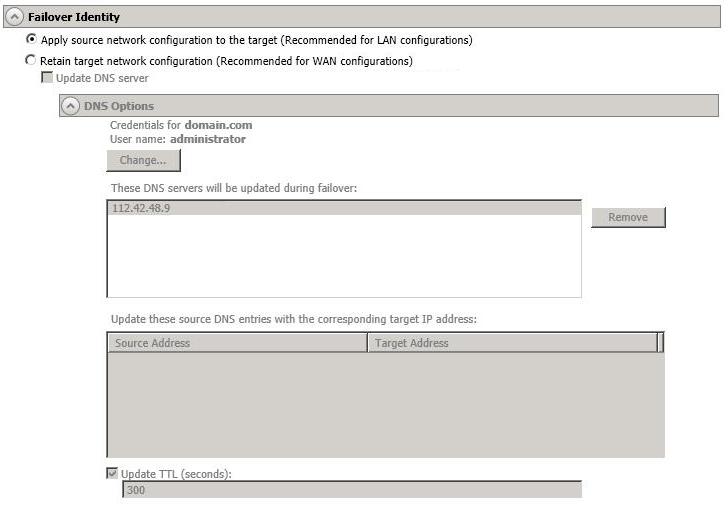
- Apply source network configuration to the target—If you select this option, you can configure the source IP addresses to failover to the target. If your target is on the same subnet as the source (typical of a LAN environment), you should select this option. Do not select this option if you are using a NAT environment that has a different subnet on the other side of the NAT router.
If you are applying the source network configuration to the target in a WAN environement, do not failover your IP addresses unless you have a VPN infrastructure so that the source and target can be on the same subnet, in which case IP address failover will work the same as a LAN configuration. If you do not have a VPN, you can automatically reconfigure the routers via a failover script (by moving the source's subnet from the source's physical network to the target's physical network). There are a number of issues to consider when designing a solution that requires router configuration to achieve IP address failover. Since the route to the source's subnet will be changed at failover, the source server must be the only system on that subnet, which in turn requires all server communications to pass through a router. Additionally, it may take several minutes or even hours for routing tables on other routers throughout the network to converge.
- Retain target network configuration—If you select this option, the target will retain all of its original IP addresses. If your target is on a different subnet (typical of a WAN or NAT environment), you should select this option.
Update DNS server—Specify if you want Double-Take to update your DNS server on failover. If DNS updates are made, the DNS records will be locked during failover. Be sure and review the Core Double-Take requirements for the requirements for updating DNS.
DNS updates are not available for Server Core servers or NAT configurations.
Expand the DNS Options section to configure how the updates will be made. The DNS information will be discovered and displayed. If your servers are in a workgroup, you must provide the DNS credentials before the DNS information can be discovered and displayed.
- Change—If necessary, click this button and specify a user
that has privileges to access and modify DNS records. The account must be a member of the DnsAdmins group for the domain, and must have full control permissions on the source's A (host) and PTR (reverse lookup) records. These permissions are not included by default in the DnsAdmins group.
- Remove—If there are any DNS servers in the list that you do not want to update, highlight them and click Remove.
- Update these source DNS entries with the corresponding target IP address—For each IP address on the source, specify what address you want DNS to use after failover.
- Update TTL—Specify the length of time, in seconds, for the time to live value for all modified DNS A records. Ideally, you should specify 300 seconds (5 minutes) or less.
If you select Retain your target network configuration but do not enable Update DNS server, you will need to specify failover scripts that update your DNS server during failover, or you can update the DNS server manually after failover. This would also apply to non--Microsoft Active Directory Integrated DNS servers. You will want to keep your target network configuration but do not update DNS. In this case, you will need to specify failover scripts that update your DNS server during failover, or you can update the DNS server manually after failover.
DNS updates will be disabled if the target server cannot communicate with both the source and target DNS servers
-
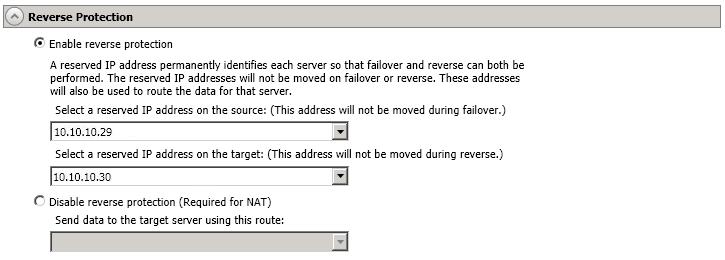
Enable reverse protection—After failover, your target server is lost. Reverse protection allows you to store a copy of the target's system state on the source server, so that the target server will not be lost. The reverse process will bring the target identity back on the source hardware and establish protection. After the reverse, the source (running on the original target hardware) will be protected to the target (running on the original source hardware).
In a LAN environment, you may want to consider having two IP addresses on each server. This will allow you to monitor and failover one (or more) IP addresses, while still leaving an IP address that does not get failed over. This IP address that is not failed over is called a reserved IP address and can be used for the reverse process. The reserved IP address remains with the server hardware. Ideally, the reserved IP address should not be used for production communications. The reserved IP address can be on the same or a different subnet from your production IP addresses, however if the subnet is different, it should be on a different network adapter. The reserved IP addresses will also be used to route Double-Take data.
You do not have to have a second IP address on each server. It is acceptable to use the production IP address for reverse protection. In this case, Double-Take will block the DNS record for that address while it is failed over.
- Select a reserved IP address on the source—Specify an IP address on the source which will be used to permanently identify the source server. The IP address you specify will not be failed over to the target in the event of a failure. This allows you to reverse protection back to the source after a failover.
- Select a reserved IP address on the target—Specify an IP address on the target which will be used to permanently identify the target server. The IP address you specify will not be lost during failover. This allows you to reverse protection back to the source after a failover.
When reverse protection is enabled, your source server must have space to store, process, and apply the target's system state data. See Disk space under Target compatibility for estimates on the amount of space you may need.
When the job is first started and reverse protection is enabled, an image of the target's system state is mirrored to the source server. This mirror may cause a performance impact on your source server. This impact is only temporary, and system performance will return to normal when the reverse protection mirror is complete.
To maintain system performance on the source, the target's system state is not continuously replicated to the source. You can manually update the image of the target's system state by viewing the job details and clicking Update under Target Server Image. See Viewing full server job details.
- Disable reverse protection—If you do not use reverse protection, after a failover, your target server will be lost. In order to continue protecting your data, you will have to manually rebuild your original source and restart protection, which can be a long and complicated process. Also, if you disable reverse, you will lose the activated target license after failover. See Deactivating licenses for how you can save and deactivate the target license. This is your only supported option if you are using a NAT environment.
- Send data to the target server using this route—Specify an IP address on the target to route Double-Take data. This allows you to select a different route for Double-Take traffic. For example, you can separate regular network traffic and Double-Take traffic on a machine with multiple IP addresses. You can also select or manually enter a public IP address (which is the public address of the NAT router) if you are using a NAT environment.
If you change the IP address on the target which is used for the target route, you will be unable to edit the job. If you need to make any modifications to the job, it will have to be deleted and re-created.
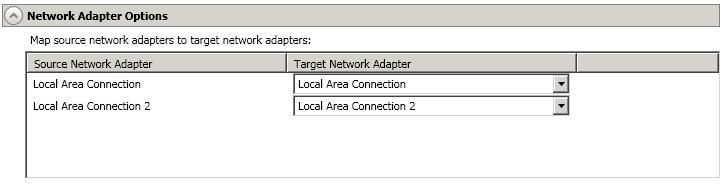
For Map source network adapters to target network adapters, specify how you want the IP addresses associated with each NIC on the source to be mapped to a NIC on the target. Do not mix public and private networks. Also, if you have enabled reverse protection, make sure that your NICs with your reserved IP addresses are mapped to each other.
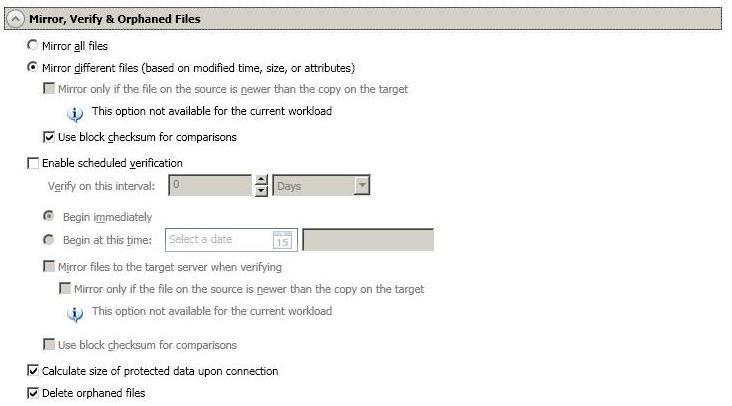
- Mirror all files—All protected files will be mirrored from the source to the target.
- Mirror different files—Only those protected files that are different based on date and time, size, or attributes will be mirrored from the source to the target.
- Mirror only if the file on the source is newer than the copy on the target—This option is not available for full server jobs.
- Use block checksum for comparisons—For those files flagged as different, the mirroring process can perform a block checksum comparison and send only those blocks that are different. Make sure you always enable this option for full server jobs.
The following table will help you understand how the various difference mirror options work together, including when you are using the block checksum option configured through the Source server properties.
An X in the table indicates that option is enabled. An X enclosed in parentheses (X) indicates that the option can be on or off without impacting the action performed during
the mirror.
Not all job types have the source newer option available.
| Source Server Properties | Job Properties | Action Performed |
|---|
| Block Checksum Option | File Differences Option | Source Newer Option | Block Checksum Option |
|---|
| (X) | X | | | Any file that is different on the source
and target based on the date, time,
size, and/or attribute is transmitted to the
target. The mirror sends the entire
file.
|
| (X) | X | X | | Any file that is newer on the source
than on the target based on date
and/or time is transmitted to the
target. The mirror sends the entire
file.
|
| | X | | X | Any file that is different on the source
and target based on date, time,
size, and/or attributed is flagged as different.
The mirror then performs a
checksum comparison on the flagged
files and only sends those blocks that
are different. |
| X | X | | X | The mirror performs a checksum
comparison on all files and only
sends those blocks that are different. |
| (X) | X | X | X | Any file that is newer on the source
than on the target based on date
and/or time is flagged as different.
The mirror then performs a
checksum comparison on the flagged
files and only sends those blocks that
are different. |
-
Enable scheduled verification—Verification is the process of confirming that the source replica data on the target is identical to the original data on the source. Verification creates a log file detailing what was verified as well as which files are not synchronized. If the data is not the same, can automatically initiate a remirror, if configured. The remirror ensures data integrity between the source and target. When this option is enabled, Double-Take will verify the source replica data on the target and generate a verification log.
Because of the way the Windows Cache Manager handles memory, machines that are doing minimal or light processing may have file operations that remain in the cache until additional operations flush them out. This may make Double-Take files on the target appear as if they are not synchronized. When the Windows Cache Manager releases the operations in the cache on the source and target, the files will be updated on the target.
- Verify on this interval—Specify the interval between verification processes.
- Begin immediately—Select this option if you want to start the verification schedule immediately after the job is established.
- Begin at this time—Select this option if you want to start the verification at the specified date and time.
- Mirror files to the target server when verifying—When this option is enabled, in addition to verifying the data and generating a log, Double-Take will also mirror to the target any protected files that are different on the source.
- Mirror only if the file on the source is newer than the copy on the target—This option is not available for full server jobs.
- Use block checksum for comparisons—For those files flagged as different, the mirroring process can perform a block checksum comparison and send only those blocks that are different.
-
Calculate size of protected data before mirroring—Specify if you want Double-Take to determine the mirroring percentage calculation based on the amount of data being protected. If the calculation is enabled, it is completed before the job starts mirroring, which can take a significant amount of time depending on the number of files and system performance. If your job contains a large number of files, for example, 250,000 or more, you may want to disable the calculation so that data will start being mirrored sooner. Disabling calculation will result in the mirror status not showing the percentage complete or the number of bytes remaining to be mirrored.
The calculated amount of protected data may be slightly off if your data set contains compressed or sparse files.
Do not disable this option for full server jobs. The calculation time is when the system state protection processes hard links. If you disable the calculation, the hard link processing will not occur and you may have problems after failover, especially if your source is Windows 2008 or 2012.
-
Delete orphaned files—An orphaned file is a file that exists in the replica data on the target, but does not exist in the protected data on the source. This option specifies if orphaned files should be deleted on the target during a mirror, verification, or restoration.
Orphaned file configuration is a per target configuration. All jobs to the same target will have the same orphaned file configuration.
The orphaned file feature does not delete alternate data streams. To do this, use a full mirror, which will delete the additional streams when the file is re-created.
If delete orphaned files is enabled, carefully review any replication rules that use wildcard definitions. If you have specified wildcards to be excluded from protection, files matching those wildcards will also be excluded from orphaned file processing and will not be deleted from the target. However, if you have specified wildcards to be included in your protection, those files that fall outside the wildcard inclusion rule will be considered orphaned files and will be deleted from the target.
If you want to move orphaned files rather than delete them, you can configure this option along with the move deleted files feature to move your orphaned files to the specified deleted files directory. See Target server properties for more information.
During a mirror, orphaned file processing success messages will be logged to a separate orphaned file log. This keeps the Double-Take log from being overrun with orphaned file success processing messages. Orphaned files processing statistics and any errors in orphaned file processing will still be logged to the Double-Take log, and during difference mirrors, verifications, and restorations, all orphaned file processing messages are logged to the Double-Take log. The orphaned file log is located in the Logging folder specified for the source. See Log file properties for details on the location of that folder. The orphaned log file is overwritten during each orphaned file processing during a mirror, and the log file will be a maximum of 50 MB.
-
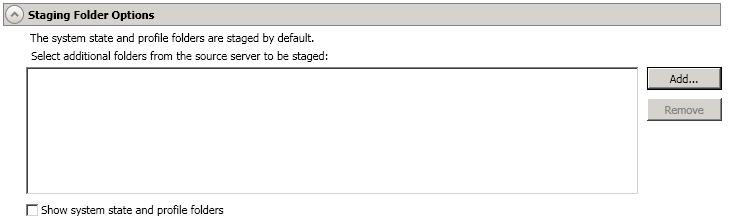
Select additional folders from the source that need to be staged—Applications running on the target that cannot be stopped will cause retry operations because Double-Take will be unable to write to open application files. In this case, you will want to mirror those application files to a staging location instead of their actual location. Generally, this will only apply to applications that are not installed in the Windows Program Files directory. In this case, click Add and specify the folder that you want staged. Any staged folders will be applied to their actual installation location during failover.
If IIS is being used as a software application on your source but as a hardware platform manager by your hardware vendor on your target, you need to add the INetPub directory to the Staged Folders Options list. If IIS is being used as a hardware platform manager by your hardware vendor on both the source and target, you need to go to the Choose Data page and remove the INetPub directory from replication under the Replication Rules heading.
- Show system state and profile folders—This option displays the list of essential system state and profile folders that will be staged automatically. These essential items are displayed in a lighter color than folders you have manually added, and they cannot be removed from the list.
-
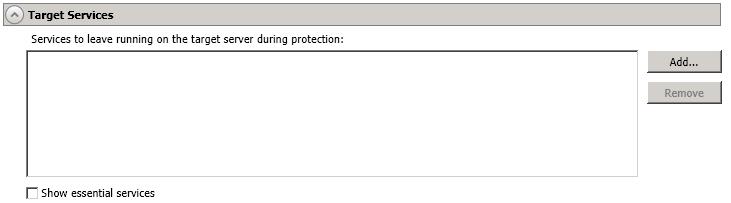
Services to leave running on the target server during protection—Double-Take controls which services are running and stopped on the target during protection. You can specify which services you want to keep running by clicking Add and selecting a service from the list. If you want to remove a service from the list, highlight it and click Remove.
Services are stopped on the target to protect against retry operations. Do not leave services running unless absolutely necessary.
- Show essential services—This option displays the list of essential services that will remain running on the target. The essential services are displayed in a lighter color than services you have manually added. The essential services cannot be removed from the list.

A snapshot is an image of the source replica data on the target taken at a single point in time. You can failover to a snapshot. However, you cannot access the snapshot to recover specific files or folders.
Turn on Enable scheduled snapshots if you want Double-Take to take snapshots automatically at set intervals.
- Take snapshots on this interval—Specify the interval (in days, hours, or minutes) for taking snapshots.
- Begin immediately—Select this option if you want to start taking snapshots immediately after the protection job is established.
- Begin at this time—Select this option if you want to start taking snapshots starting at a later date and time. Specify the date and time parameters to indicate when you want to start.
See Managing snapshots for details on taking manual snapshots and deleting snapshots.
You may want to set the size limit on how much space snapshots can use. See your VSS documentation for more details.

To help reduce the amount of bandwidth needed to transmit Double-Take data, compression allows you to compress data prior to transmitting it across the network. In a WAN environment this provides optimal use of your network resources. If compression is enabled, the data is compressed before it is transmitted from the source. When the target receives the compressed data, it decompresses it and then writes it to disk. You can set the level from Minimum to Maximum to suit your needs.
Keep in mind that the process of compressing data impacts processor usage on the source. If you notice an impact on performance while compression is enabled in your environment, either adjust to a lower level of compression, or leave compression disabled. Use the following guidelines to determine whether you should enable compression.
- If data is being queued on the source at any time, consider enabling compression.
- If the server CPU utilization is averaging over 85%, be cautious about enabling compression.
- The higher the level of compression, the higher the CPU utilization will be.
- Do not enable compression if most of the data is inherently compressed. Many image (.jpg, .gif) and media (.wmv, .mp3, .mpg) files, for example, are already compressed. Some images files, such as .bmp and .tif, are decompressed, so enabling compression would be beneficial for those types.
- Compression may improve performance even in high-bandwidth environments.
- Do not enable compression in conjunction with a WAN Accelerator. Use one or the other to compress Double-Take data.
All jobs from a single source connected to the same IP address on a target will share the same compression configuration.
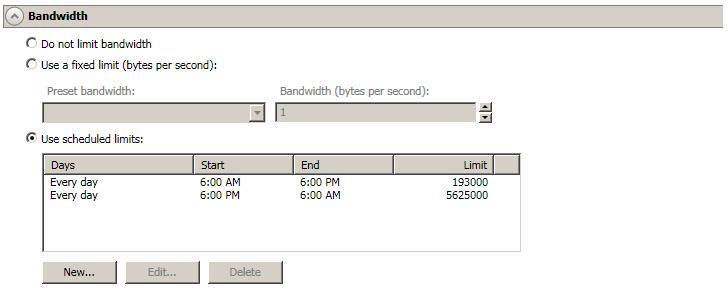
Bandwidth limitations are available to restrict the amount of network bandwidth used for Double-Take data transmissions. When a bandwidth limit is specified, Double-Take never exceeds that allotted amount. The bandwidth not in use by Double-Take is available for all other network traffic.
All jobs from a single source connected to the same IP address on a target will share the same bandwidth configuration.
- Do not limit bandwidth—Double-Take will transmit data using 100% bandwidth availability.
- Use a fixed limit—Double-Take will transmit data using a limited, fixed bandwidth. Select a Preset bandwidth limit rate from the common bandwidth limit values. The Bandwidth field will automatically update to the bytes per second value for your selected bandwidth. This is the maximum amount of data that will be transmitted per second. If desired, modify the bandwidth using a bytes per second value. The minimum limit should be 3500 bytes per second.
- Use scheduled limits—Double-Take will transmit data using a dynamic bandwidth based on the schedule you configure. Bandwidth will not be limited during unscheduled times.
- New—Click New to create a new scheduled bandwidth limit. Specify the following information.
- Daytime entry—Select this option if the start and end times of the bandwidth window occur in the same day (between 12:01 AM and midnight). The start time must occur before the end time.
- Overnight entry—Select this option if the bandwidth window begins on one day and continues past midnight into the next day. The start time must be later than the end time, for example 6 PM to 6 AM.
- Day—Enter the day on which the bandwidth limiting should occur. You can pick a specific day of the week, Weekdays to have the limiting occur Monday through Friday, Weekends to have the limiting occur Saturday and Sunday, or Every day to have the limiting repeat on all days of the week.
- Start time—Enter the time to begin bandwidth limiting.
- End time—Enter the time to end bandwidth limiting.
- Preset bandwidth—Select a bandwidth limit rate from the common bandwidth limit values. The Bandwidth field will automatically update to the bytes per second value for your select bandwidth.
- Bandwidth—If desired, modify the bandwidth using a bytes per second value. The minimum limit should be 3500 bytes per second.
- Edit—Click Edit to modify an existing scheduled bandwidth limit.
- Delete—Click Delete to remove a scheduled bandwidth limit.
If you change your job option from Use scheduled limits to Do not limit bandwidth or Use a fixed limit, any schedule that you created will be preserved. That schedule will be reused if you change your job option back to Use scheduled limits.
You can manually override a schedule after a job is established by selecting Other Job Options, Set Bandwidth. If you select No bandwidth limit or Fixed bandwidth limit, that manual override will be used until you go back to your schedule by selecting Other Job Options, Set Bandwidth, Scheduled bandwidth limit. For example, if your job is configured to use a daytime limit, you would be limited during the day, but not at night. But if you override that, your override setting will continue both day and night, until you go back to your schedule. See the Managing and controlling jobs section for your job type for more information on the Other Job Options.
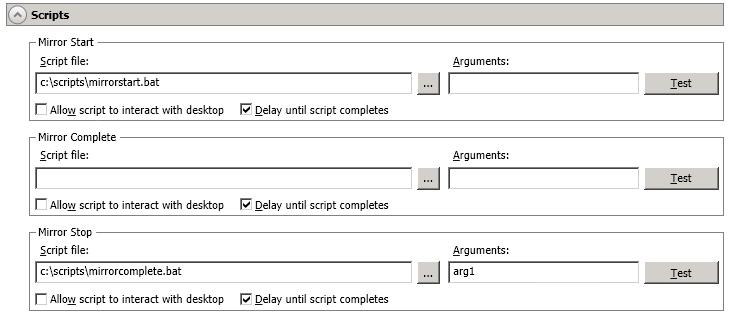
You can customize mirroring by running scripts on the target at pre-defined points in the mirroring process. Scripts may contain any valid Windows command,
executable, or batch file. The scripts are processed using the same account running the Double-Take service, unless you have identified a specific account through the server's properties. See Script credentials. There are three types of mirroring scripts.
- Mirror Start—This script starts when the target receives the first mirror operation. In
the case of a difference mirror, this may be a long time after the mirror is started
because the script does not start until the first different data is received on the
target. If the data is synchronized and a difference mirror finds nothing to mirror, the
script will not be executed.
Specify the full path and name of the Script file.
- Mirror Complete—This script starts when a mirror is completed. Because the
mirror statistics may indicate a mirror is at 99-100% when it is actually still
processing (for example, if files were added after the job size was
calculated, if there are alternate data streams, and so on), the script will not start
until all of the mirror data has been completely processed on the target. Specify the full path and name of the Script file.
- Mirror Stop—This script starts when a mirror is stopped, which may be caused by
an auto-disconnect occurring while a mirror is running, the service is shutdown
while a mirror is running, or if you stop a mirror manually.
Specify the full path and name of the Script file.
- Arguments—Specify a comma-separated list of valid arguments required
to execute the script.
- Allow script to interact with desktop—Enable this option if you want the script processing to be displayed on the screen. Otherwise, the script will execute silently in the background.
- Delay until script completes—Enable this option if you want to delay the mirroring process until the associated script has completed. If you select this option, make sure your script handles errors, otherwise the mirroring process may never complete if the process is waiting on a script that cannot complete.
- Test—You can test your script manually by clicking Test. Your
script will be executed if you test it. If necessary, manually undo any changes that
you do not want on your target after testing the script.
Mirror scripts are dependent on the target and the Target Path Mappings specified under the Network Route & Folder Selection section. If you establish mirroring scripts for one job and then
establish additional jobs to the same target using the same target path
mapping, the mirroring scripts will automatically be applied to those subsequent
jobs. If you select a different target path mapping, the mirroring scripts will
have to be reconfigured for the new job(s).
-
Click Next to continue.
-
Double-Take validates that your source and target are compatible. The Summary page displays your options and validation items.
Errors are designated by a white X inside a red circle. Warnings are designated by a black exclamation point (!) inside a yellow triangle. A successful validation is designated by a white checkmark inside a green circle. You can sort the list by the icon to see errors, warnings, or successful validations together. Click on any of the validation items to see details. You must correct any errors before you can enable protection. Depending on the error, you may be able to click Fix or Fix All and let Double-Take correct the problem for you. For those errors that Double-Take cannot correct automatically, you will need to modify the source or target to correct the error, or you can select a different target. You must revalidate the selected servers, by clicking Recheck, until the validation check passes without errors.
Before a job is created, the results of the validation checks are logged to the Double-Take Management Service log on the target. After a job is created, the results of the validation checks are logged to the job log.
-
Once your servers have passed validation and you are ready to establish protection, click Finish, and you will automatically be taken to the Manage Jobs page.
Jobs in a NAT environment may take longer to start.

 General
 Related Topics