Open topic with navigation
Registering and Deploying the Double-Take Move Integration Pack
The Double-Take Move Integration Pack must be registered with the Orchestrator Management Server and then deployed to Orchestrator Runbook Servers and Runbook Designers. The steps below can also be used to deploy the other required Integration Packs, if they have not been registered and deployed yet. See Requirements for the list of required Integration Packs. For more information about how to install Integration Packs, see your System Center documentation.
- Start the Deployment Manager on the Orchestrator server.
- In the left pane, expand Orchestrator Management Server.
- Register your integration packs.
- Right-click Integration Packs, and select Register IP with the Orchestrator Management Server. The Integration Pack Registration Wizard appears.
- Click Next.
- In the Select Integration Packs or Hotfixes dialog box, click Add.
Locate the .OIP file for the Vision Solutions Integration Pack for Double-Take Move, click Open, and then click Next.
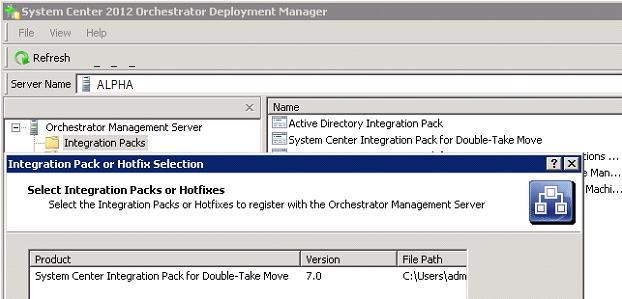
- Click Finish to close the wizard.
- On the End User Agreement dialog box, read the License Terms and then click Accept. The Log Entries pane on the right displays a confirmation message when the integration pack is successfully registered.
- Deploy your integration packs.
- Right-click Integration Packs, click Deploy IP to Runbook Server or Runbook Designer, and click Next, if necessary.
- Select the Vision Solutions Integration Pack for Double-Take Move and click Next.
- Enter the name of the Runbook server or computers with the Runbook Designer installed, on which you want to deploy the integration pack, click Add, and then click Next.
- If you would like to choose a time to deploy the integration pack, select Schedule Installation and select the time and date from the Perform Installation list.
- Select one of the following.
- Stop all running Runbooks before installing the integration pack—This options stops all running Runbooks before deploying the integration pack. This is the default setting.
- Install the Integration Packs without stopping the running Runbooks—This option installs the integration pack without stopping any running Runbooks. This may require a restart of the Orchestrator server with the Runbook Designer installed.
- Click Next.
- Click Finish to close the wizard. The Log Entries pane on the right displays a confirmation message when the integration pack is deployed.